Using Apple Watch
myPotential uses your Apple Watch automatically when it is nearby, worn, and sending a live reading. You do not need to add the watch from the Bluetooth monitor screen.
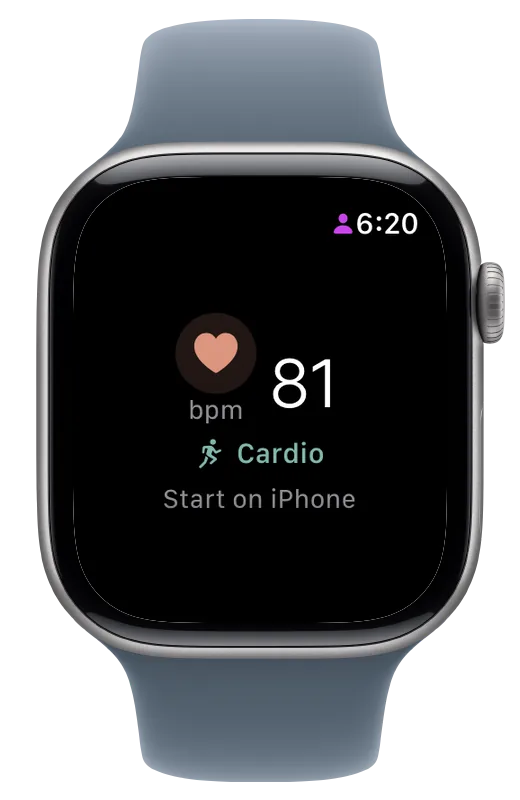
Before you start
- Wear and unlock your Apple Watch.
- Open myPotential on your iPhone and start your session.
- On the pre-session screen, check that a current heart-rate number appears before you begin.
If myPotential asks for Health access, allow heart-rate access. Without it, the app cannot use the reading for target-based exercise.
Get a more reliable reading
- Wear the watch one or two finger widths above the wrist bone, on flatter skin.
- Keep the band snug enough that the watch does not slide, without making it uncomfortable.
- Warm up gently if your hands or arms are cold.
- Wipe the sensor and your wrist dry if sweat or moisture affects the reading. Keep lotion and sunscreen away from the sensor.
- Avoid Low Power Mode during a session because it can reduce sensor sampling.
- For strength work, try the non-dominant wrist for steadier readings.
Dark wrist tattoos, cold skin, and a loose band can interfere with the optical sensor. If the signal keeps dropping, a compatible Bluetooth chest strap or armband may suit you better.
If the watch is not reading
Check that the watch is worn, unlocked, and close to the iPhone. Reopen the session and wait for a heart-rate number on the pre-session screen. If the app asks you to update Apple Watch, update or reinstall myPotential from the Watch app on your iPhone.
See Heart-rate monitors for the other supported sources.