Starting your first session
This guide begins at the dashboard and follows your first Cardio · Base Pace session through to the workout screen.
Open today's session
The dashboard shows today's session, approximate duration, and the equipment you can use. For the first cardio session, prepare a rowing machine or recumbent bike, then tap Start.
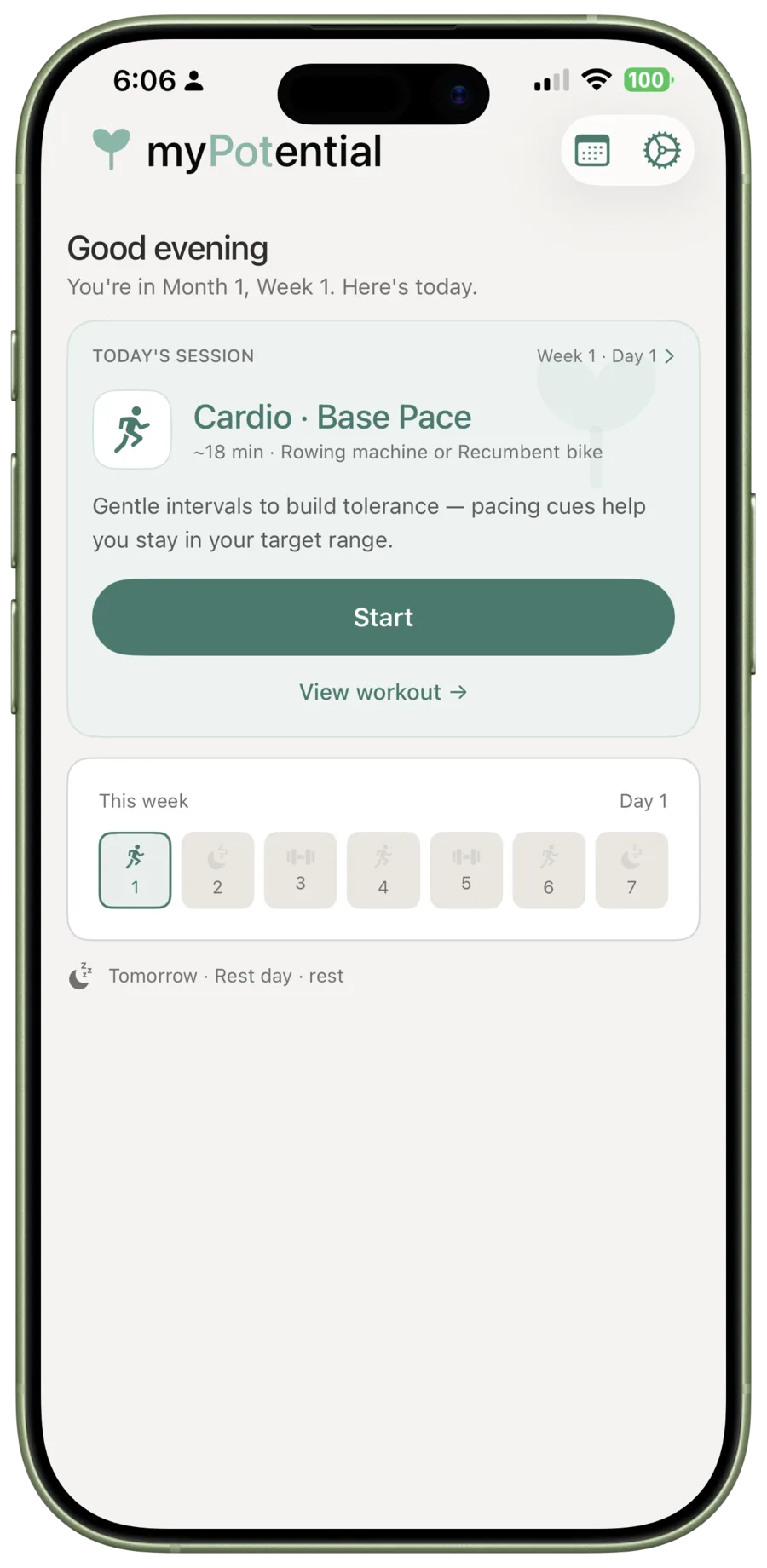
If you want to look ahead first, tap View workout. To choose another day or check your place in the programme, tap the Week · Day label. See Choose or resume a session.
Allow Bluetooth access
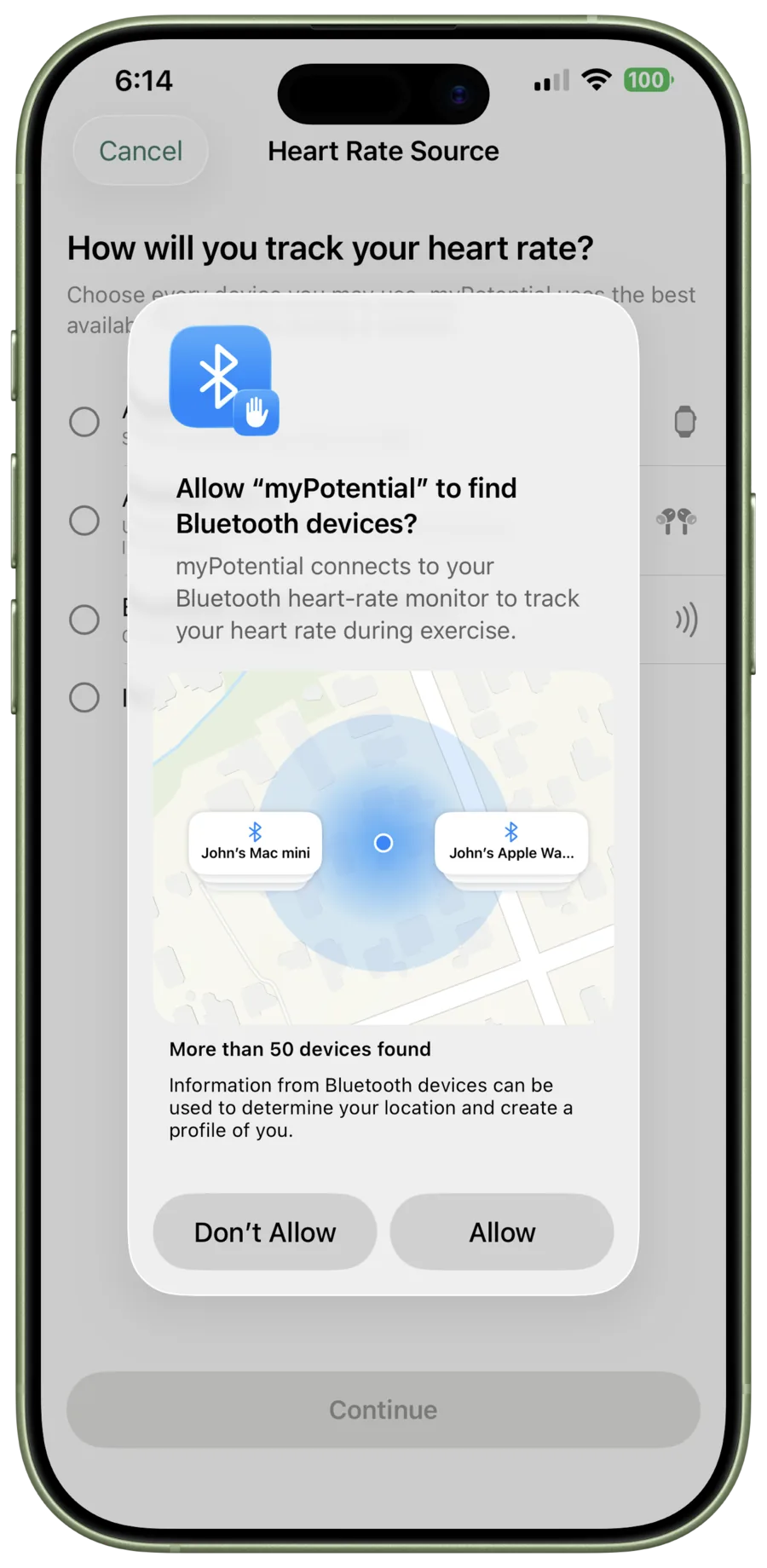
The first time you start a session, iPhone asks whether myPotential can find Bluetooth devices. myPotential supports Bluetooth heart-rate monitors and needs this access if you use one. Tap Allow to continue.
Choose your heart-rate source
Put on and wake the heart-rate source you plan to use, then select it on the heart-rate source screen. You can select every source you might use; myPotential uses the best available live reading during a session.
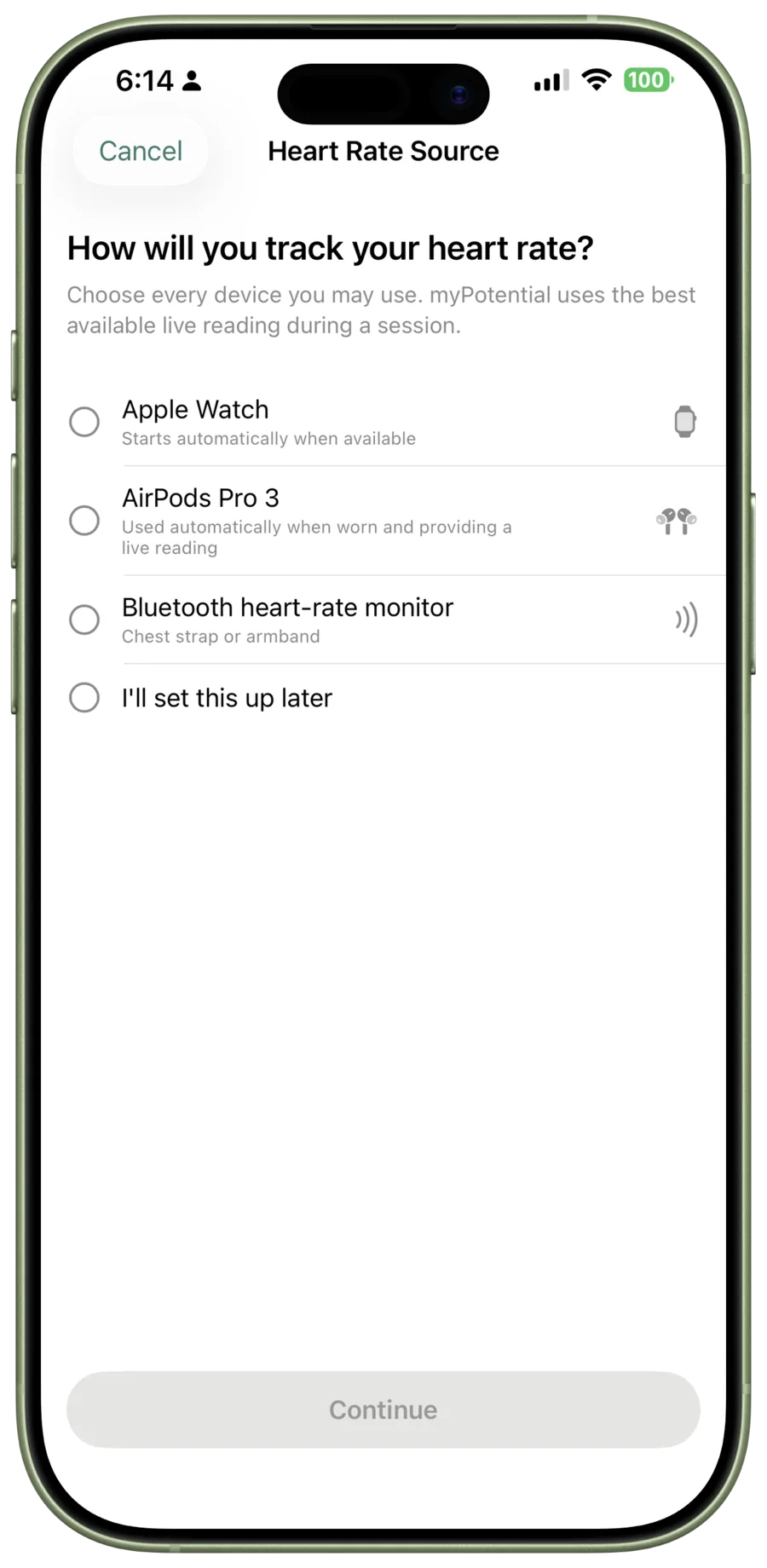
- Apple Watch: Set up Apple Watch.
- AirPods Pro 3: Set up AirPods Pro 3.
- Bluetooth heart-rate monitor: Select this option to begin the guided pairing process. For more detail, see Pair a Bluetooth heart-rate monitor.
- Not sure which source to use? See Heart-rate monitors.
When you have made your selections, tap Continue to return to the dashboard. If you selected a Bluetooth heart-rate monitor, follow the pairing steps before continuing.
Open the pre-session check-in
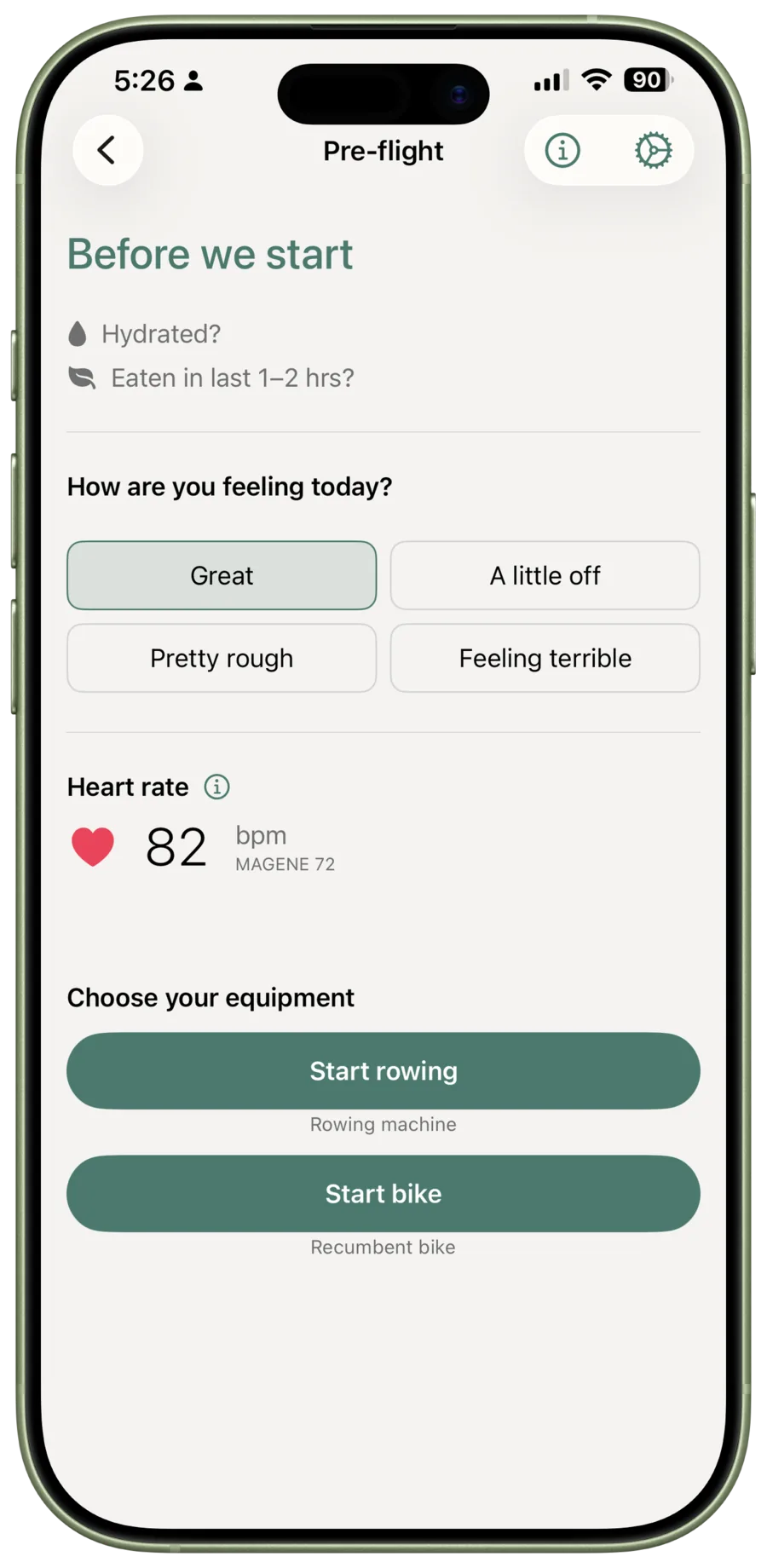
Back on the dashboard, tap Start to open the pre-session check-in. Wait for a current heart-rate number to appear. The session cannot start until myPotential is receiving a live reading.
Complete the check-in
Choose the response that best describes how you are feeling. The session's Start buttons stay unavailable until you choose a response and a current heart-rate reading is available.
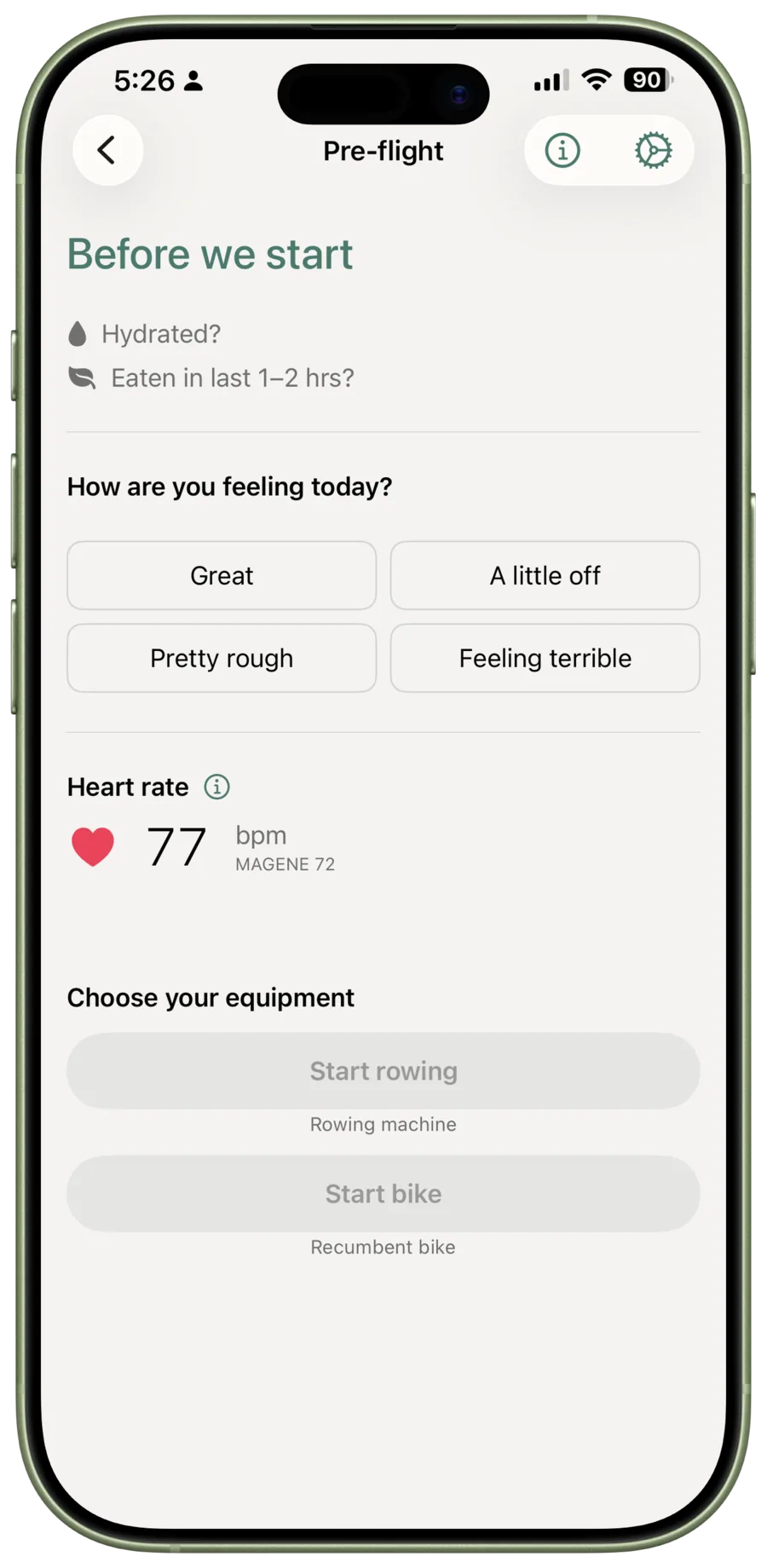
If you select the most severe option, myPotential shows a Rest today choice. Follow the advice you have agreed with your doctor when deciding what to do.
Choose your equipment and start
Once the check-in is complete and a heart-rate number is visible, choose the session's Start button for the equipment you will use. For the first session, select Start rowing or Start bike. This opens your workout.
During the workout
The workout screen shows the current activity, time remaining, heart-rate number, and target range. Follow the on-screen activity, timing, and pacing guidance. Complete the session in the app so it appears in your history.
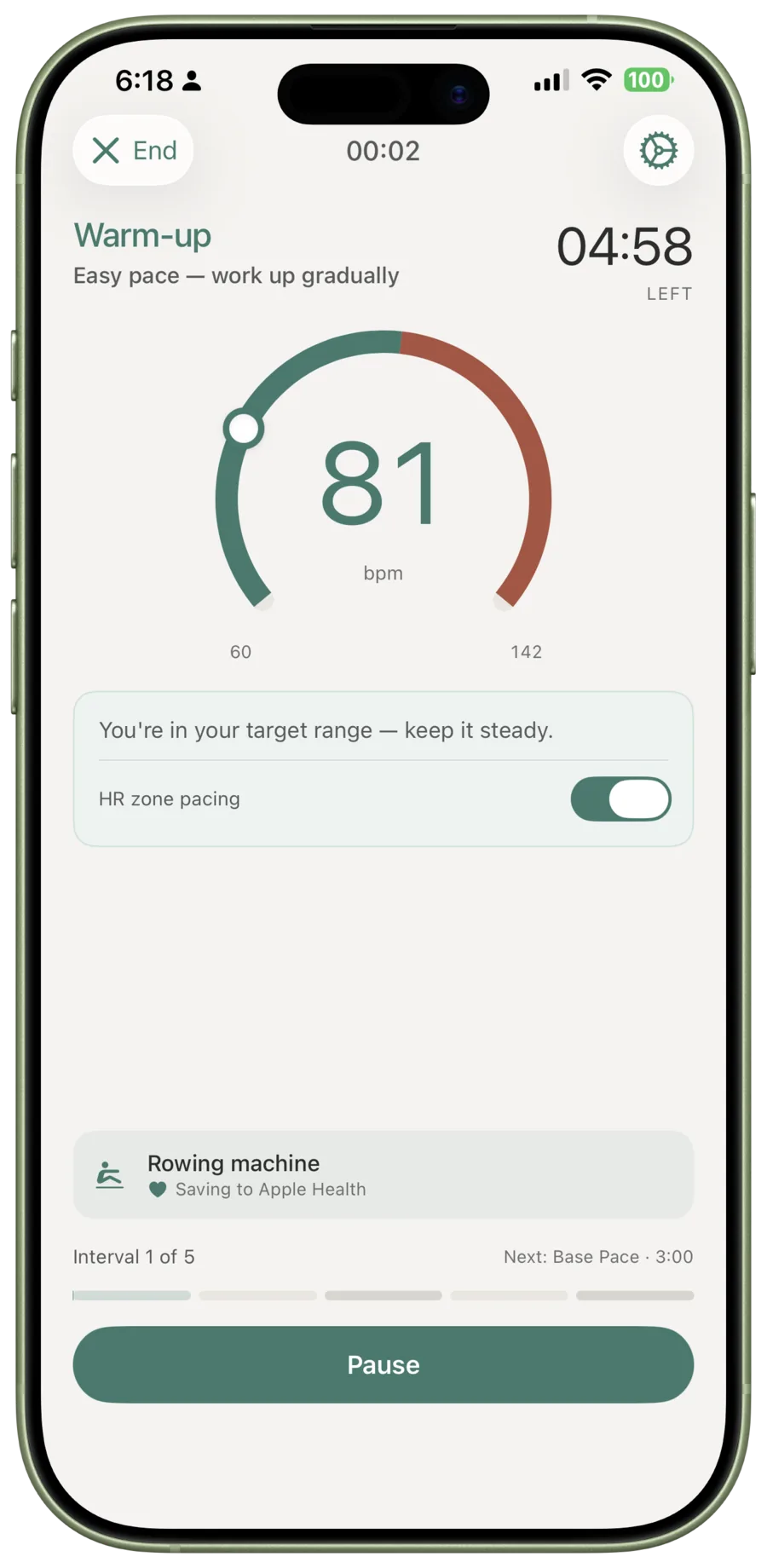
For timing and target-range guidance during cardio, see Cardio sessions. For strength exercises, rests, and set tracking, see Strength sessions.