Pair a Bluetooth heart-rate monitor
Add a compatible Bluetooth monitor from inside myPotential. The app checks for a live heart-rate reading before it saves the monitor.
Connect a monitor
- Put on the monitor, turn it on, and keep it close to your iPhone. Check the monitor's own instructions if it has a pairing or workout mode.
- Open Settings in myPotential, then go to Heart Rate and select Monitor.
- Choose Scan for Monitors.
- Select your monitor from the nearby list.
- Wait for a live reading and the Connected confirmation.
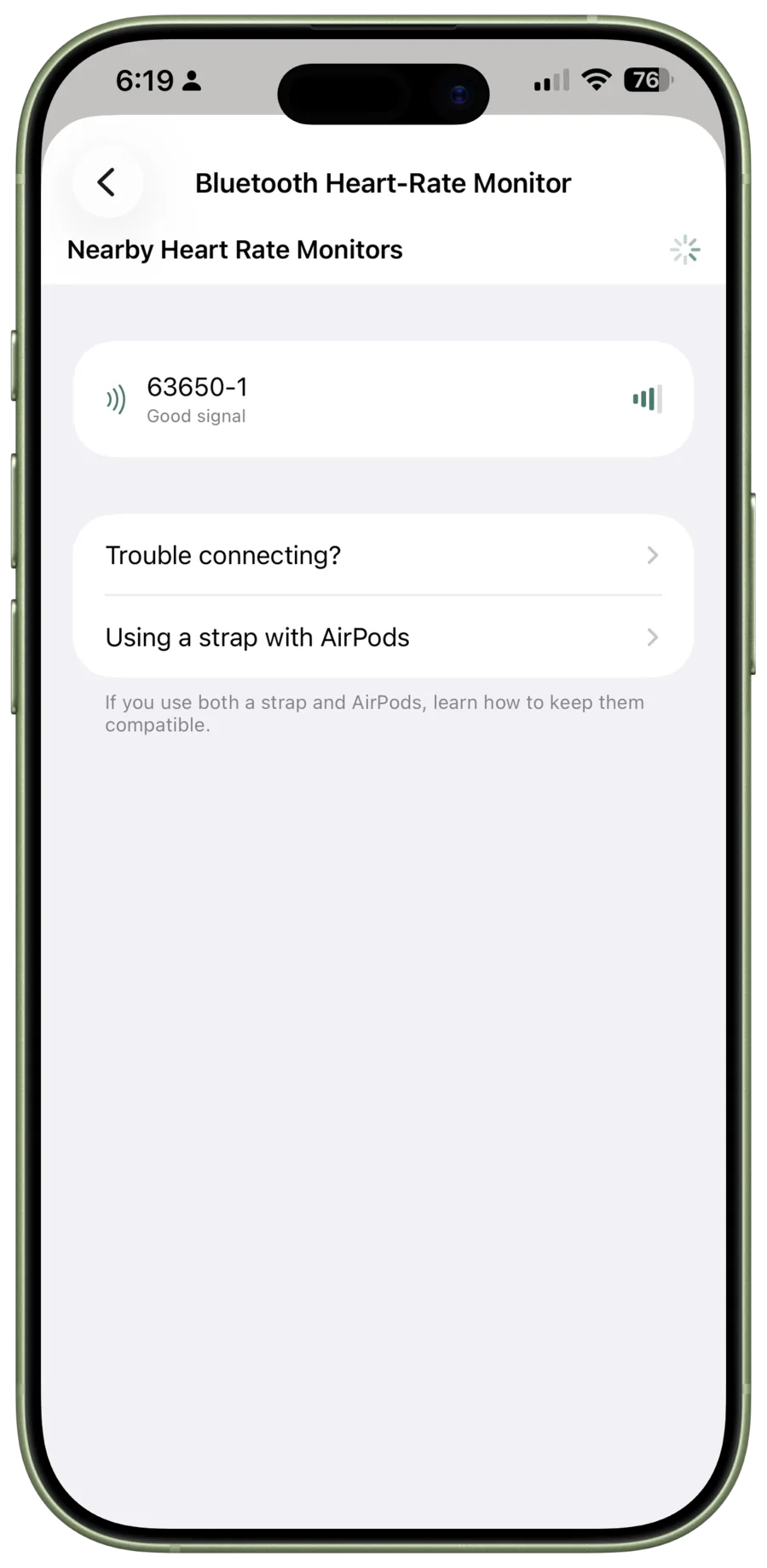
The app saves the monitor for future sessions. Before each workout, check that the heart-rate panel shows a current reading.
If your monitor does not appear
- Charge it or fit a fresh battery.
- Check that Bluetooth is on for your iPhone.
- Put the monitor on and make sure it is in its Bluetooth pairing or workout mode.
- Move it closer to the iPhone, then turn it off and on again before scanning.
- Disconnect it from other fitness apps that may already be using it.
If you also use AirPods Pro 3, do not pair the monitor in iPhone Settings. That can stop AirPods heart-rate readings from appearing. Forget the device in iPhone Settings, then add it from myPotential's scan screen. See Use AirPods Pro 3 for heart rate for the full steps.
Change or remove a monitor
Go to Settings → Heart Rate → Monitor. Choose Forget to remove the saved monitor, then scan again to add a different one.