Strength sessions
After the readiness check-in, choose the location or equipment that matches where you are training. myPotential then shows one exercise at a time, with the scheduled number of sets and repetitions.
Complete sets and rests
Tap the set-complete button after each set. The app records the set and starts the scheduled rest. You can tap Skip rest when you are ready to continue.
Exercise instructions
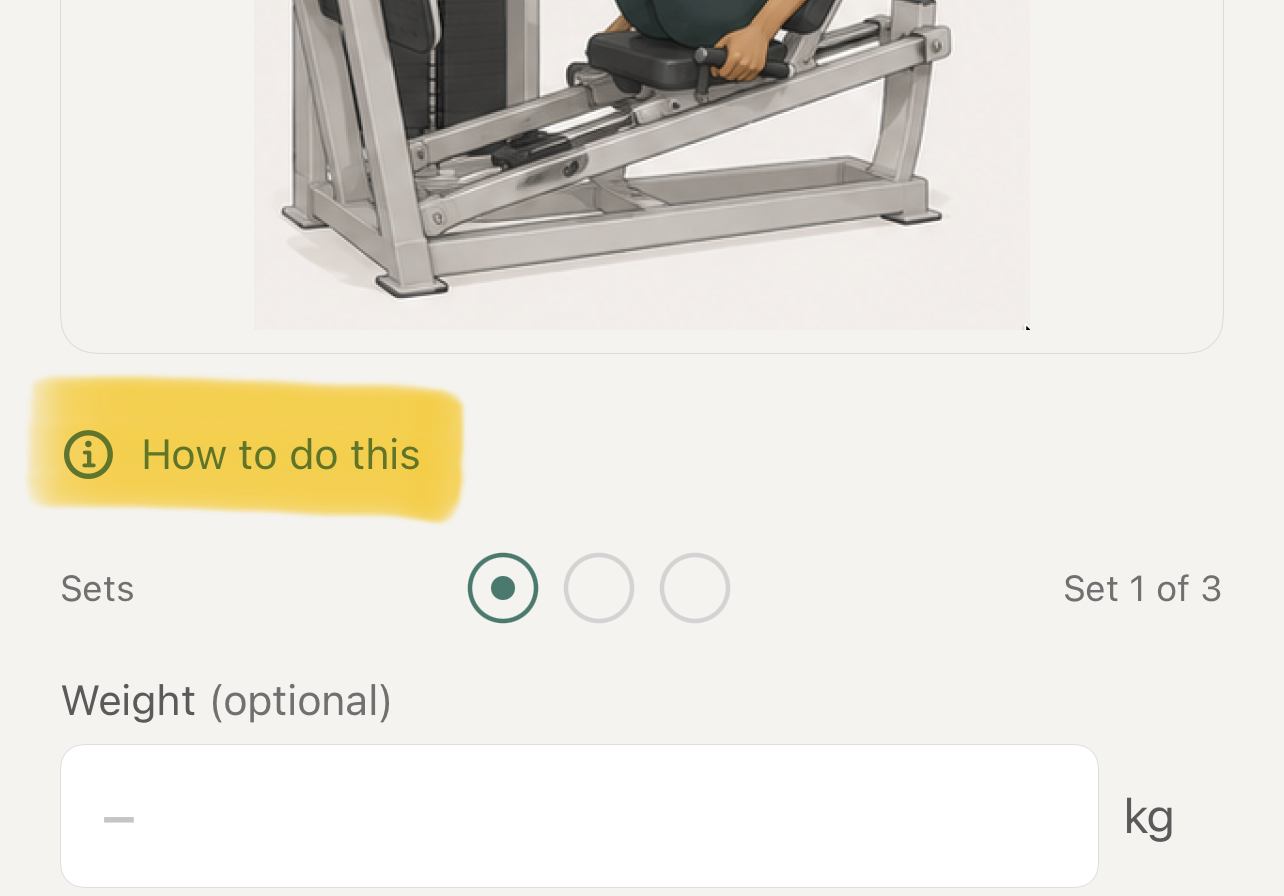
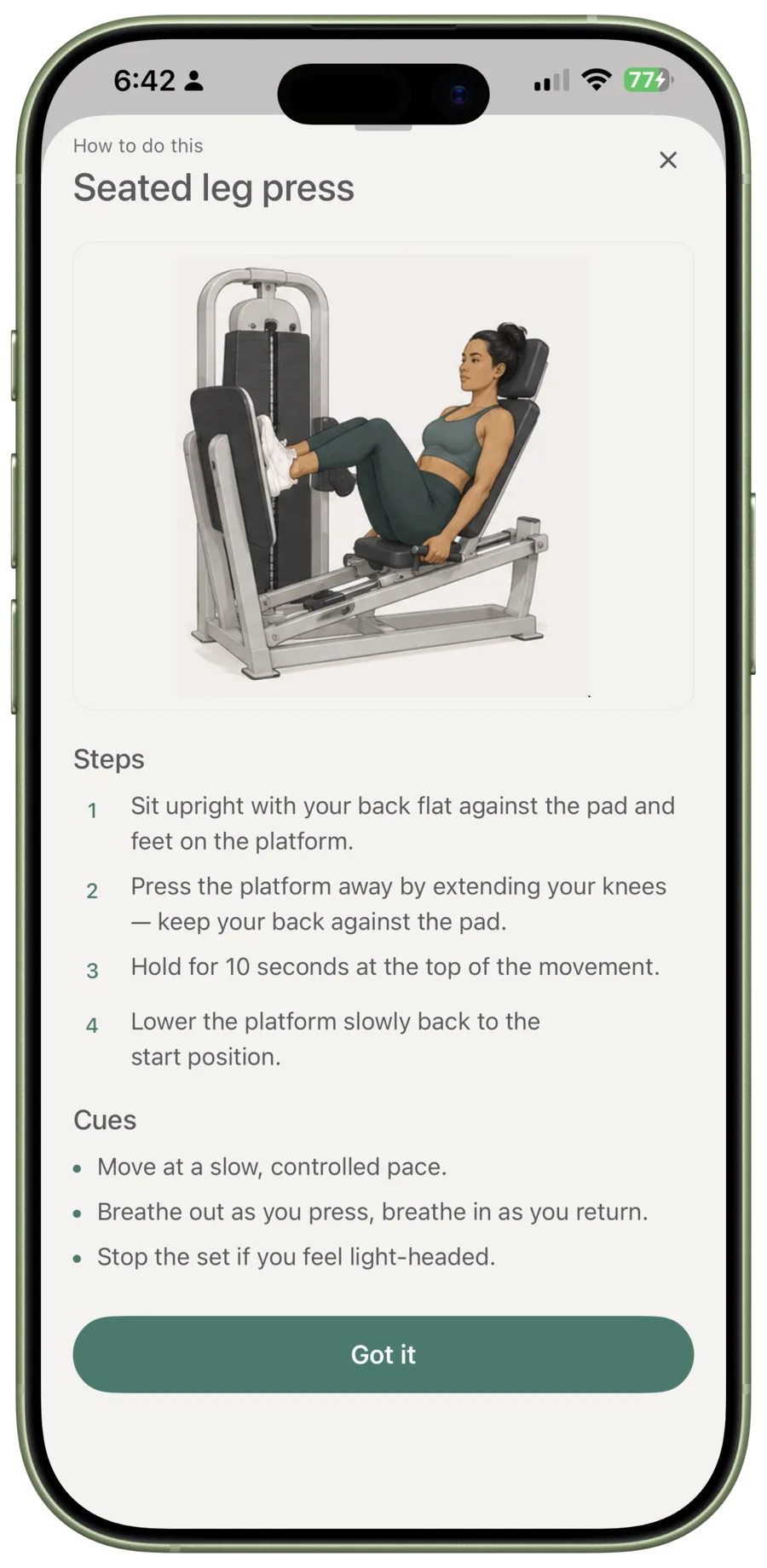
Tap How to do this on an exercise card for the exercise illustration, step-by-step instructions, and cues.
The instructions show the exercise image, steps, and cues in one place.
Jump to a different exercise
Tap the header at the top of the exercise card. For example: Exercise 3 of 10 · Leg extension. This opens Jump to exercise, where you can select an unfinished exercise.
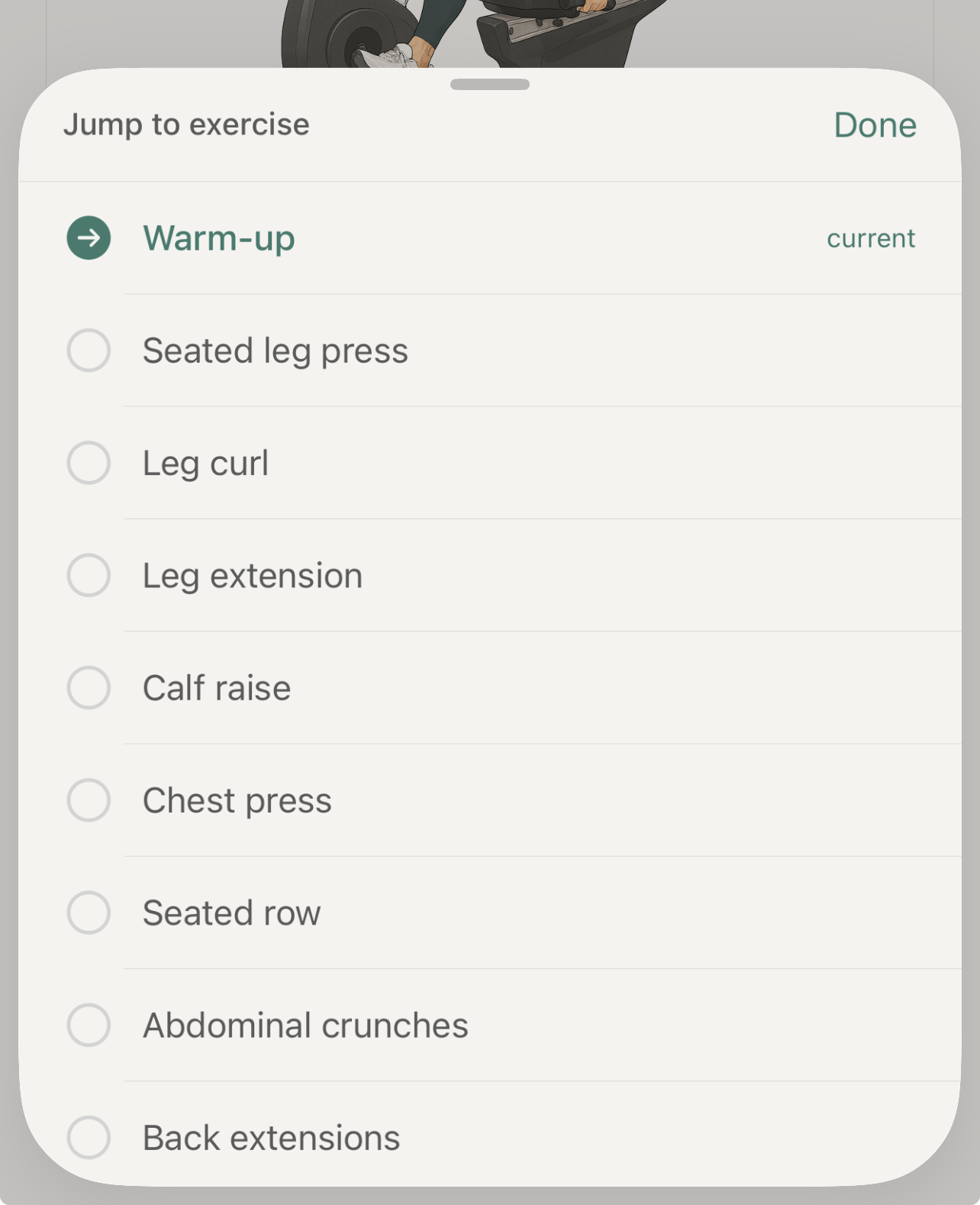
Use this when a machine is occupied. The list shows the current exercise, partly completed work, and exercises already done. You cannot select an exercise that is already complete.
You can also swipe left to move forward through the workout or right to go back.
End a workout early
Tap End at the top of the workout if you need to leave early. The confirmation screen gives you three choices:
- Back to workout returns you to the session.
- Abandon workout discards the workout progress and returns you to the home screen.
- Complete workout saves your progress and opens the summary.
Complete the summary
The summary shows how many exercises you completed. You can choose how you feel and add an optional note. Tap Complete at the bottom of the summary to save it and return to the home screen.